How to Type Accents and Special Characters on Any Keyboard
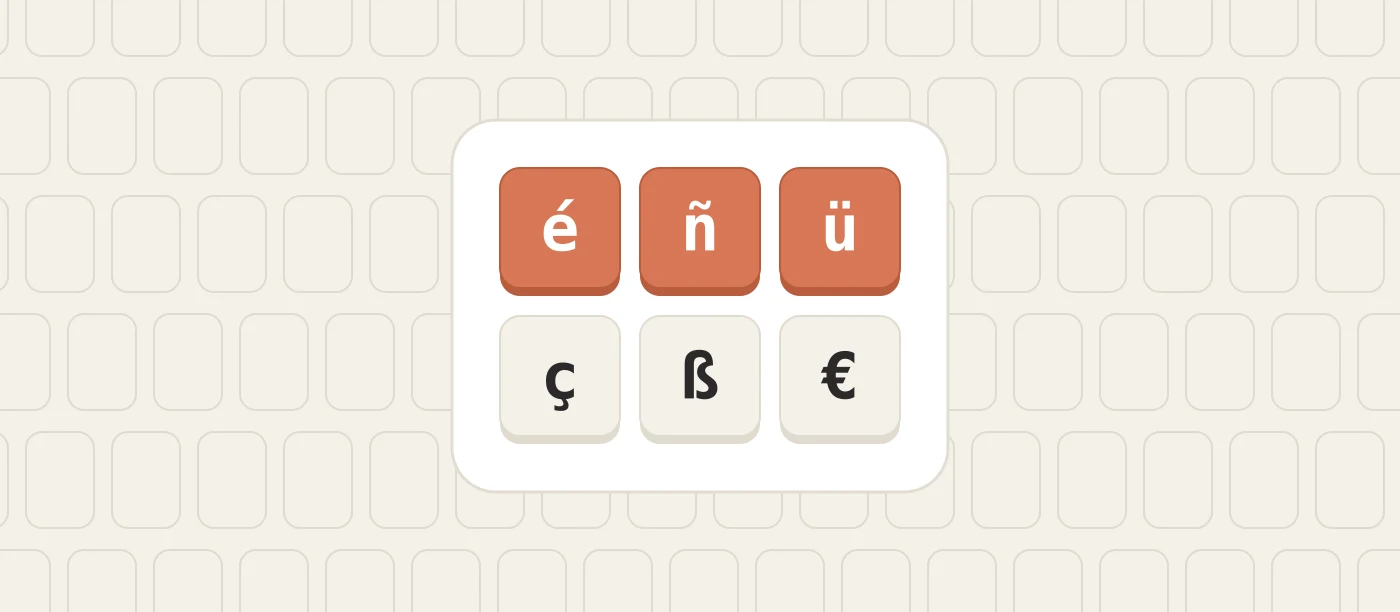
Sooner or later everyone needs a character that is not printed on their keyboard: the é in café, the ñ in a Spanish surname, the ü in a German city, the € sign on an invoice. Copying it from a web page works once. If you need it every week, learn the method your system already has built in. This guide lists the ones worth knowing.
Windows: three methods
Alt codes
Hold the Alt key, type a number on the numeric keypad, and release Alt. Num Lock must be on, and the digits must come from the keypad on the right, not the row above the letters.
- é Alt + 0233
- è Alt + 0232
- ñ Alt + 0241
- ü Alt + 0252
- ö Alt + 0246
- ç Alt + 0231
- ß Alt + 0223
- ¿ Alt + 0191
- ¡ Alt + 0161
- € Alt + 0128
Alt codes are reliable, but they are slow, and many laptops have no numeric keypad. They suit a character you need a few times a month.
The US International layout
If you type accents every day on a US keyboard, add the layout called United States-International in the language settings. It turns five keys into "dead keys" that wait for the next letter:
- Apostrophe, then e, gives é. Apostrophe, then c, gives ç.
- Grave accent (the key left of 1), then a, gives à.
- Quotation mark, then u, gives ü.
- Tilde, then n, gives ñ.
- Caret (Shift + 6), then o, gives ô.
To type the plain apostrophe or quotation mark, press the key and then the space bar. The right Alt key adds more: right Alt + s gives ß, right Alt + 5 gives €, right Alt + 1 gives ¡ and right Alt + / gives ¿.
The symbol panel
Press the Windows key and the full stop together. A panel opens with emoji and, on a second tab, symbols and accented letters. It is the easiest method to remember and the slowest to use.
Mac: hold the key, or use Option
The simple way: hold a letter key down for a moment. A small menu of accented versions appears with a number under each one. Press the number.
The fast way uses the Option key as a dead key:
- Option + e, then the letter, adds an acute accent: é, á, ó.
- Option + `, then the letter, adds a grave accent: è, à.
- Option + u, then the letter, adds an umlaut: ü, ö, ä.
- Option + n, then n, gives ñ.
- Option + i, then the letter, adds a circumflex: ê, ô.
- Option + c gives ç. Option + s gives ß.
- Option + 1 gives ¡. Option + Shift + ? gives ¿.
- Option + Shift + 2 gives € on a US keyboard.
For anything else, Control + Command + Space opens the character viewer, where you can search by name.
Linux: the Compose key
Most Linux desktops let you choose a Compose key in the keyboard settings. The right Alt key and the Menu key are common choices. You press Compose, release it, and then type two characters that look like the result when combined:
- Compose, apostrophe, e gives é.
- Compose, quotation mark, u gives ü.
- Compose, tilde, n gives ñ.
- Compose, comma, c gives ç.
- Compose, s, s gives ß.
- Compose, ?, ? gives ¿. Compose, !, ! gives ¡.
- Compose, =, e gives €.
The sequences are easy to guess, which makes this the most pleasant system of the three once it is switched on. In many applications you can also press Ctrl + Shift + U, type the character's Unicode number (e9 for é) and press Enter.
Chromebook
Open the keyboard settings and add the US International keyboard as an input method. The dead keys then work as they do on Windows: apostrophe then e for é, tilde then n for ñ. Ctrl + Shift + U followed by the Unicode number and Enter also works.
Phones and tablets
Hold your finger on a letter. The accented versions pop up above it; slide to the one you want and lift. The same works for symbols: holding the dollar sign usually offers other currency signs, and holding the question mark offers ¿. If you write in a second language regularly, add that language's keyboard and switch with the globe key. Autocorrect will then add most accents for you.
Which method should you learn?
It depends on how often you need the characters.
- A few times a year: use the symbol panel or the character viewer. Nothing to memorise.
- A few times a month: learn the Alt codes or Option combinations for the two or three characters you actually use, and write them on a note near your screen.
- Every day: switch to a dead key layout (US International, or Compose on Linux), or install the keyboard layout of the language itself. A Spanish, French, German or Portuguese layout puts the common accented letters on their own keys, which is always the fastest option if most of your writing is in that language.
Practise them like any other key
Accents feel slow because you rarely type them, not because they are hard. Once you have chosen a method, treat the new combinations the way you would treat any weak key: type a short list of words that use them, slowly and without looking, for a few minutes a day. Words such as café, niño, über, garçon and straße cover most of the common marks. Within a week or two the combinations stop interrupting your typing, and text in a second language stops looking like it was written in a hurry.